
Put Yourself in a Perfect Street Photo
You know that feeling when you find a great photo, the sky is perfect, the location looks amazing, and you think, "I wish I was standing there." This prompt does exactly that. You keep the scene as it is and just place yourself in it, so it looks like you were really there.
About This Photo
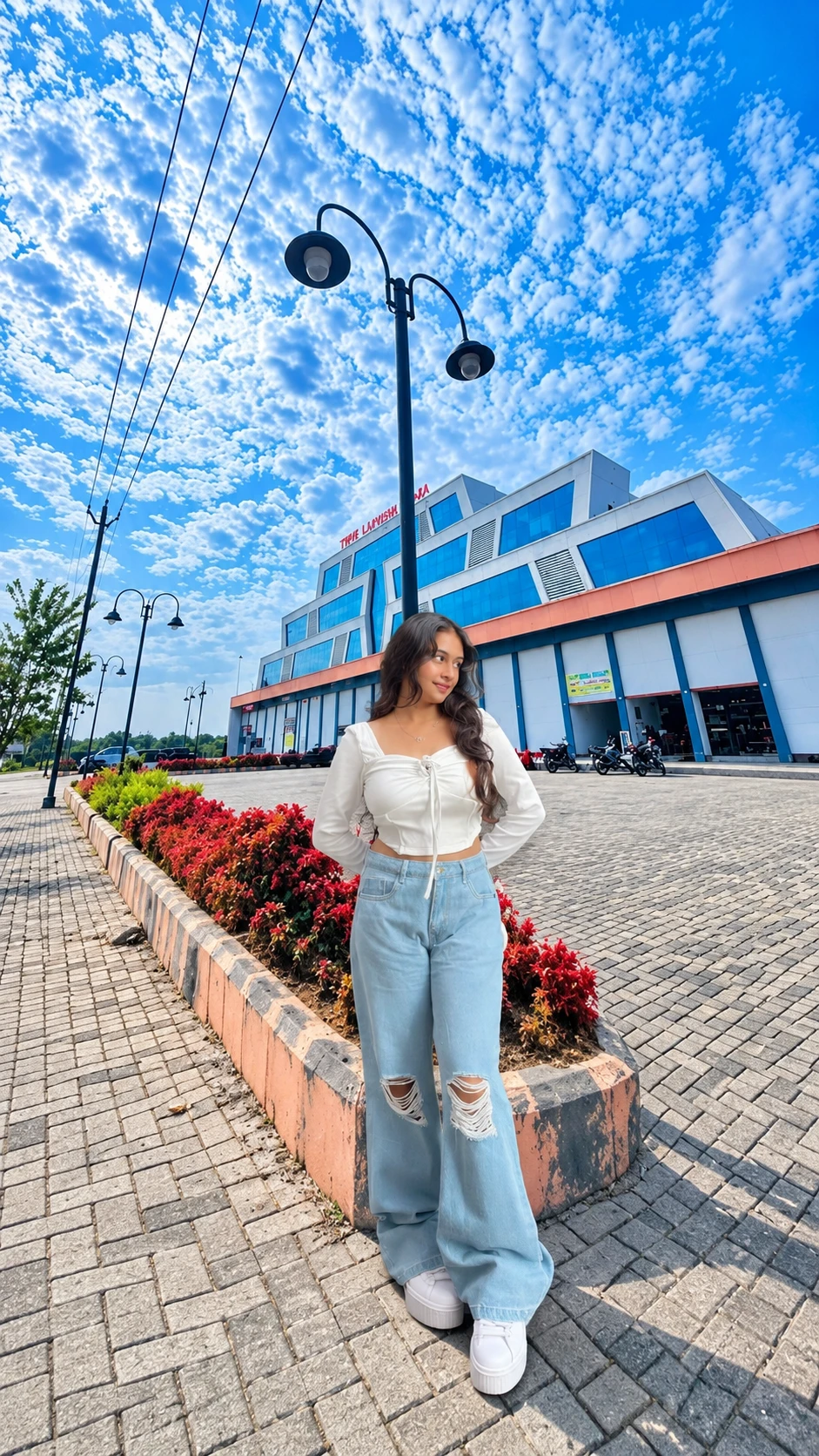
The reference image is a bright daytime shot on a paved street. A tall black lamp post stands in the middle, a modern building sits in the background, and a flower bed with red leaves runs along the path. The best part is the sky, which is full of small white clouds on deep blue.
The person in the photo wears a white full-sleeve crop top, light blue ripped wide-leg jeans and chunky white sneakers. She stands with her hands behind her back and looks to the side. It is a relaxed, everyday pose that is easy to match.
The Prompt
Copy the prompt below and use it in any AI image editor that accepts two images.
Place this person in the second photo in a realistic manner and adjust them to match the second photo; do not change anything else. Keep the background exactly as it is-do not alter it at all-and do not change the face or body size. Enhance the image to 8K quality and set the aspect ratio to 9:16How to Use It
- Open an AI image tool that lets you upload more than one photo.
- Upload your own photo first. A clear, front-facing picture works best.
- Upload the street photo as the second image.
- Paste the prompt and generate.
- If the result looks off, run it again. Small changes happen every time.
What Each Line Does
"Place this person in the second photo" tells the tool which image is the subject and which one is the scene.
"Adjust them to match" is about light and color. Your photo may have been taken indoors, so the tool matches it to the bright sunlight here.
"Keep the background exactly as it is" stops the tool from changing the sky, the building or the flowers.
"Do not change the face or body size" keeps you looking like you.
"8K quality" and "9:16" ask for a sharp, tall image that fits phone screens and stories.
Tips for Better Results
- Use a photo where your full body is visible, not a cropped one.
- Pick a picture with similar daylight so the blend looks natural.
- Avoid blurry or heavily filtered photos.
- If the feet or shadows look strange, ask the tool to fix only the shadows on the ground.
- Try a light outfit in your own photo, like white or denim, since it fits this scene well.
Please Keep This in Mind
Use only your own photos, or photos of people who have agreed to it. Do not put someone else into an image without asking them. If you post the result online, it is a good habit to mention that it was edited with AI.
Final Words
A good sky and a clean background do most of the work. This prompt keeps things simple: your photo, a nice location and a natural blend. Save it, try it with a couple of different pictures, and see which one turns out best.


Comments